Published on 4 min read
Chrome DevTools - Console Tips and Tricks
Useful Chrome DevTools Console tips - selecting elements, $_ and $0-$4, copy(), monitor(), monitorEvents(), timing, styled output and more.
Preface
The Chrome DevTools includes a built-in tool for interacting with the JavaScript engine, which is the Console.
In order to master the Console - we should know its supported capabilities as much as possible.
Accordingly, we’re going to reveal several tips regarding the Console.
Opening the Console
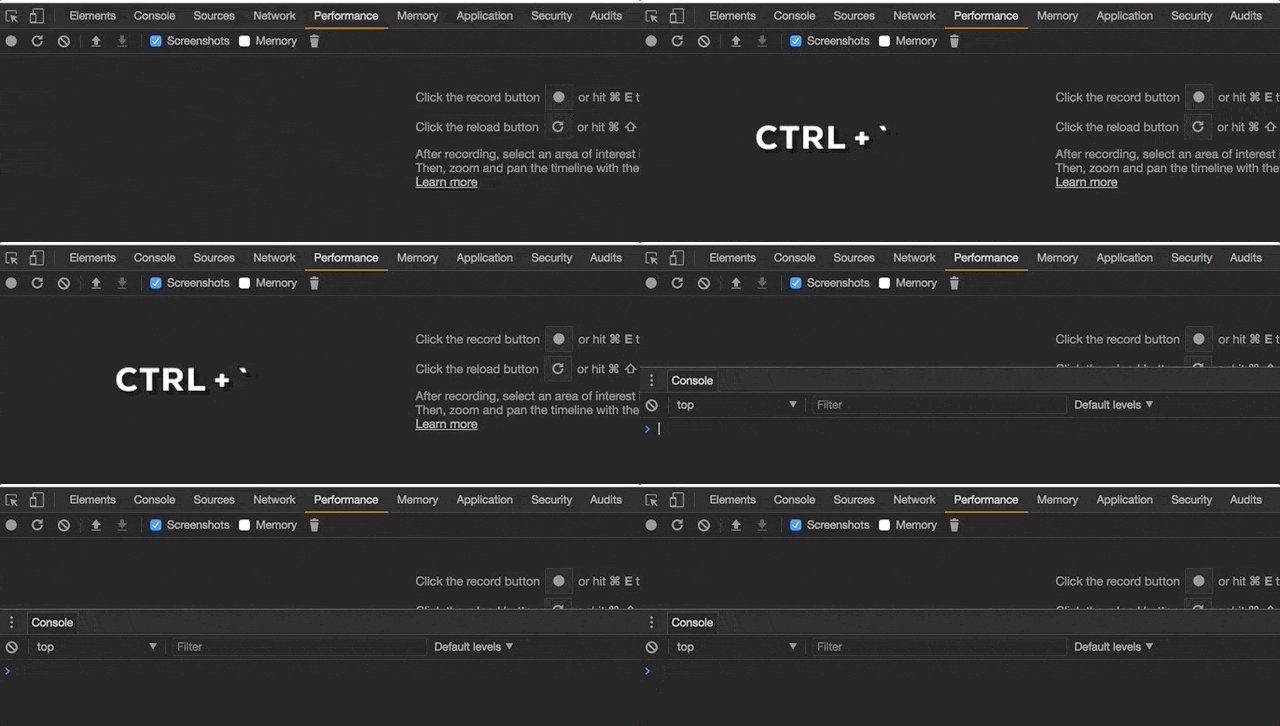
To open the Console as a panel - press on CTRL+SHIFT+J (Windows/Linux) or CMD + OPT + J (Mac):

To open the Console as a drawer - press on Esc while DevTools is open (it toggles the drawer):
Selecting Elements
We can execute querySelectorAll for selecting all elements by a selector using $$(selector):
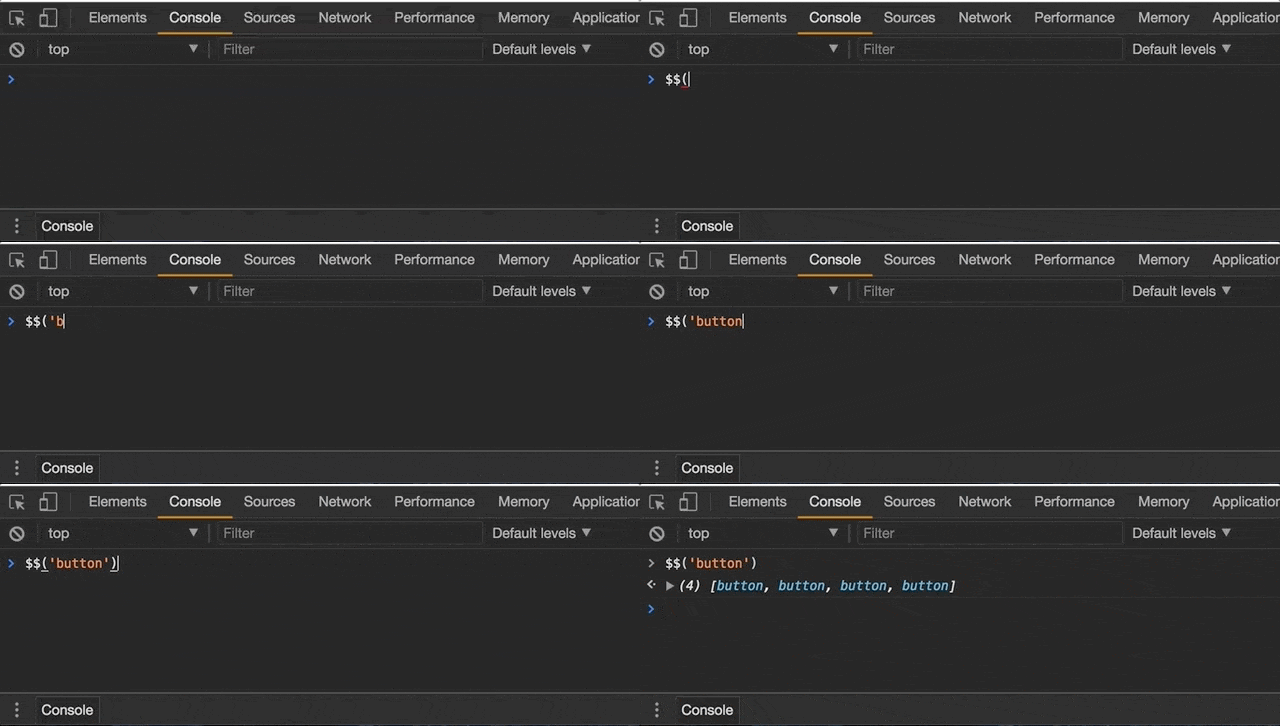
Note: If we want to execute querySelector, we should use $(selector).
Last Evaluated Expression
To access the last evaluated expression, we can use $_:
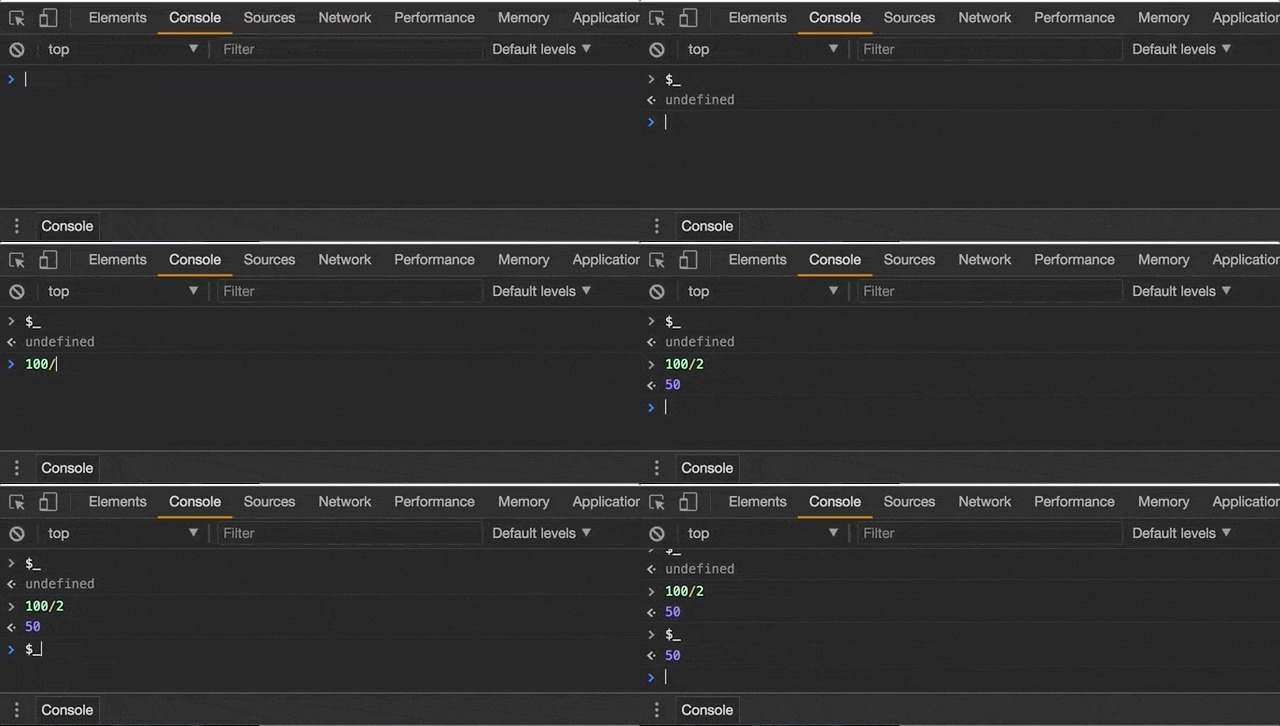
Note: We can apply the appropriate methods on that expression, for instance - if it’s a DOM element, we’re able to invoke innerHTML and print the result into the Console.
Last Five Elements
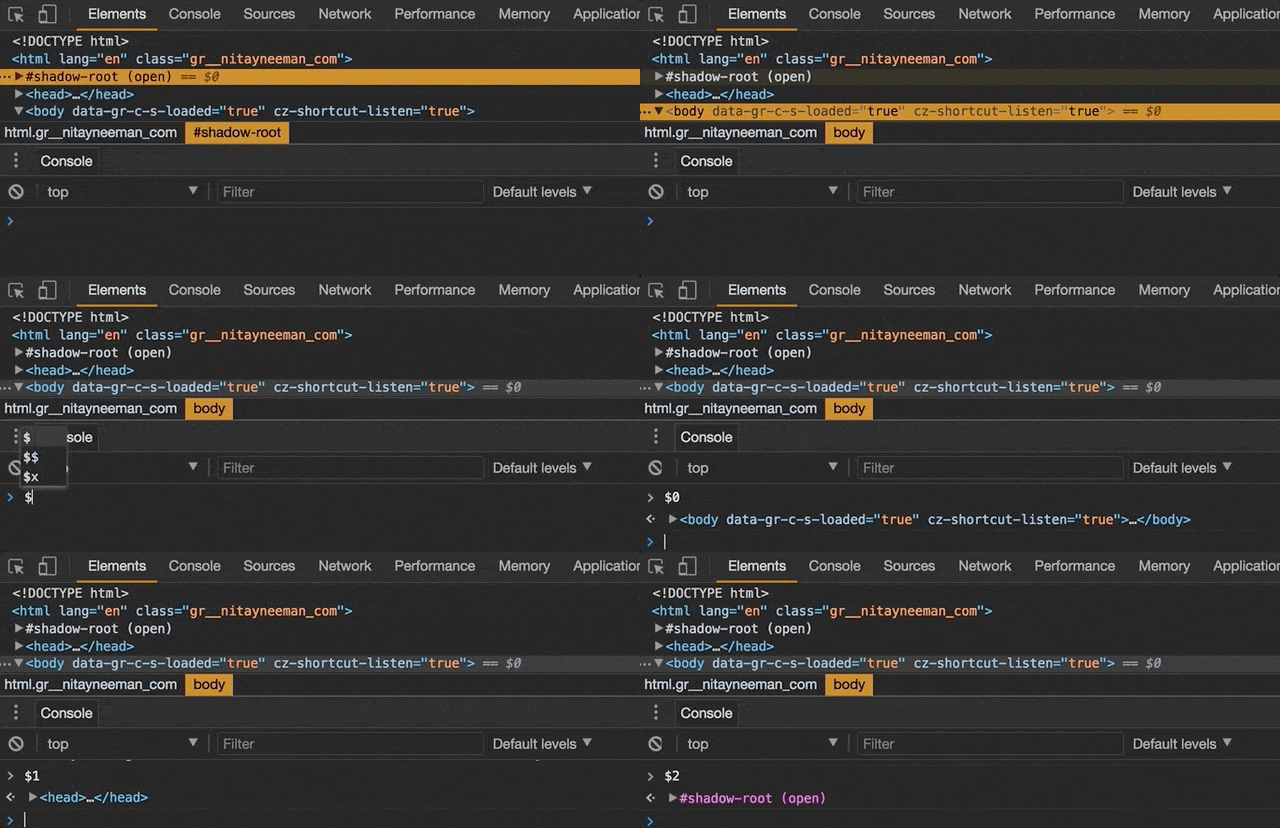
In case that we traverse the DOM manually, we have the ability to access the last five inspected elements. In order to do that, we can use the commands: $0, $1, $2, $3 and $4. $0 returns the current selected element whereas $1 to $4 return the previously selected ones, in order:
Copy to Clipboard
Sometimes we need to copy the string representation of an object to the clipboard:
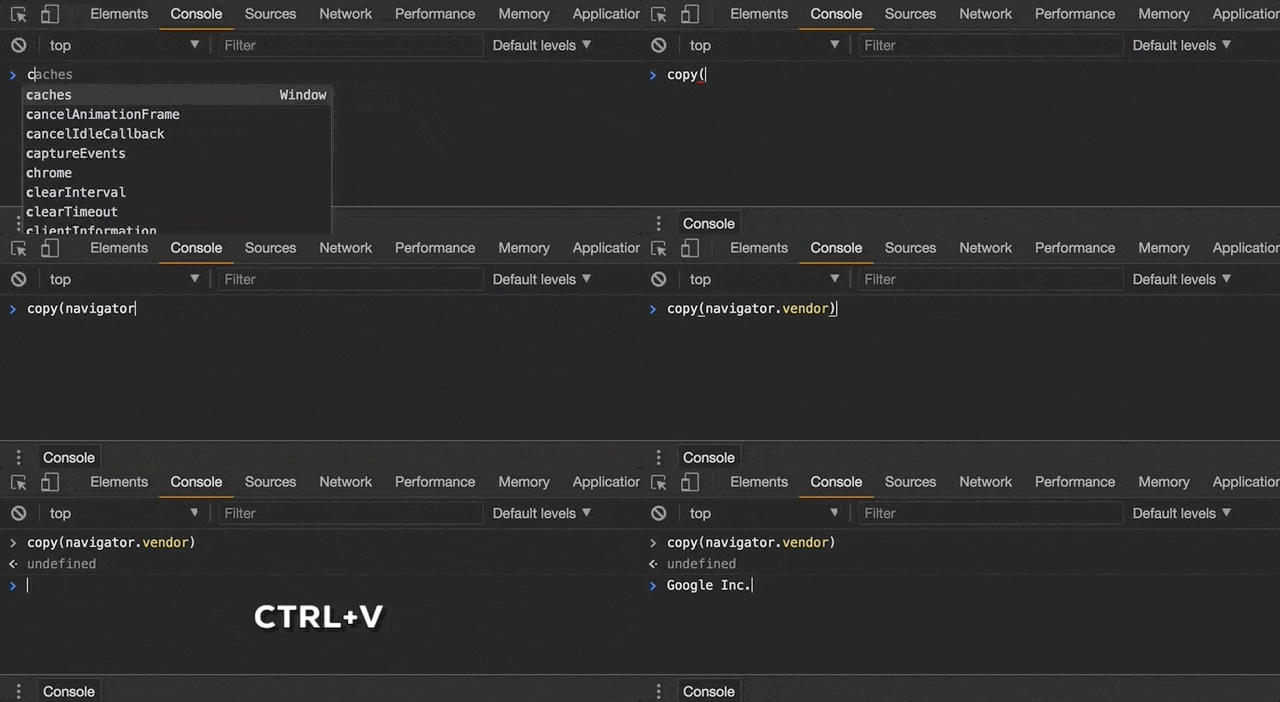
Note: In previous versions of DevTools, we had to use copy(JSON.stringify(object)) in order to convert the JSON to a string. However, it isn’t needed anymore.
Registered Event Listeners
Printing the registered event listeners for an object is pretty easy because of getEventListeners(object):
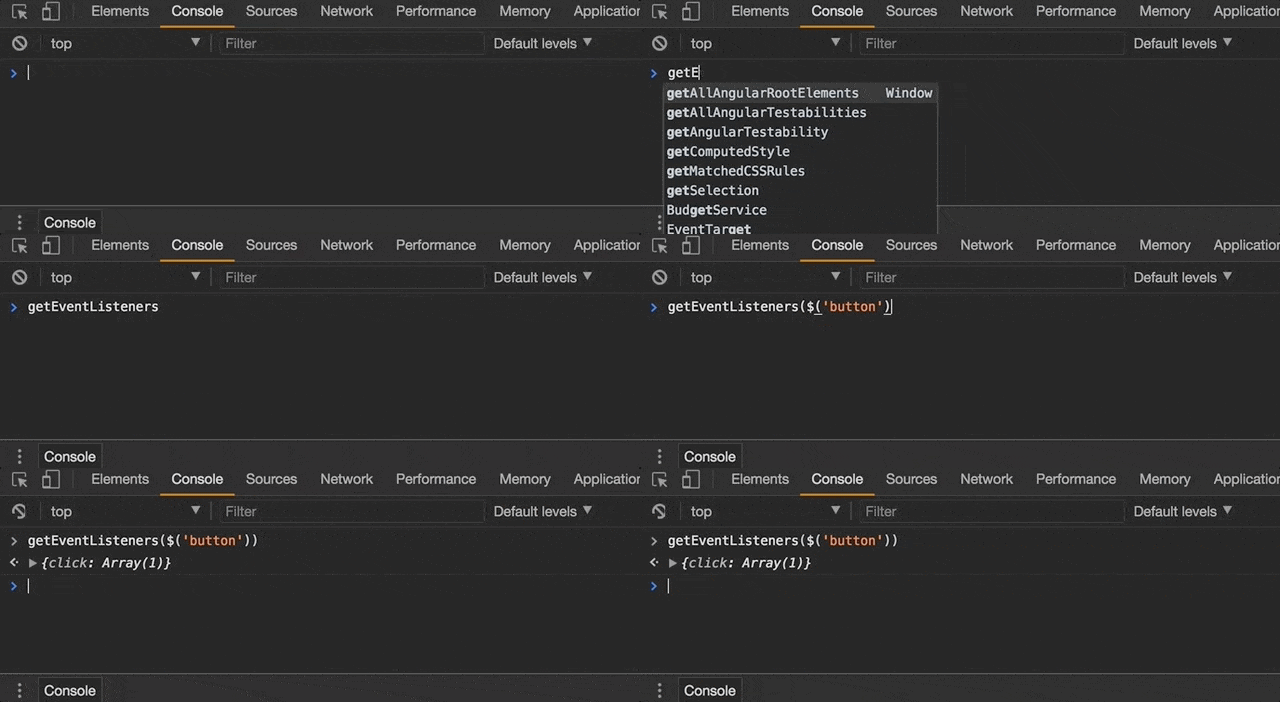
Note: Assuming there is a button with click event in the page.
Monitoring a Function
We can track invocations for a function with the passed arguments using monitor(function):
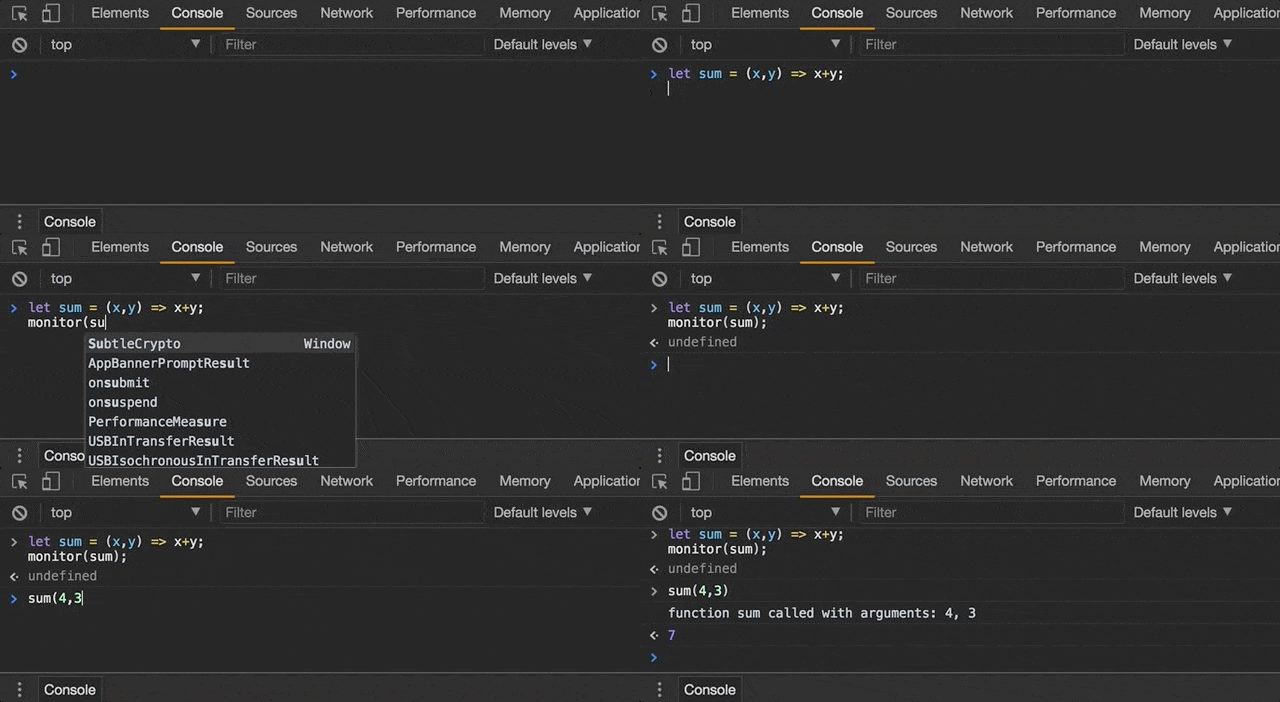
Note: To stop the tracking - use unmonitor(function).
Monitoring Events
We can track the events of an object using monitorEvents(object, [events]). The first argument is the actual specified object whereas the second is the specified array of events (or a single event).
Let’s listen and simulate clicks on the Window object:
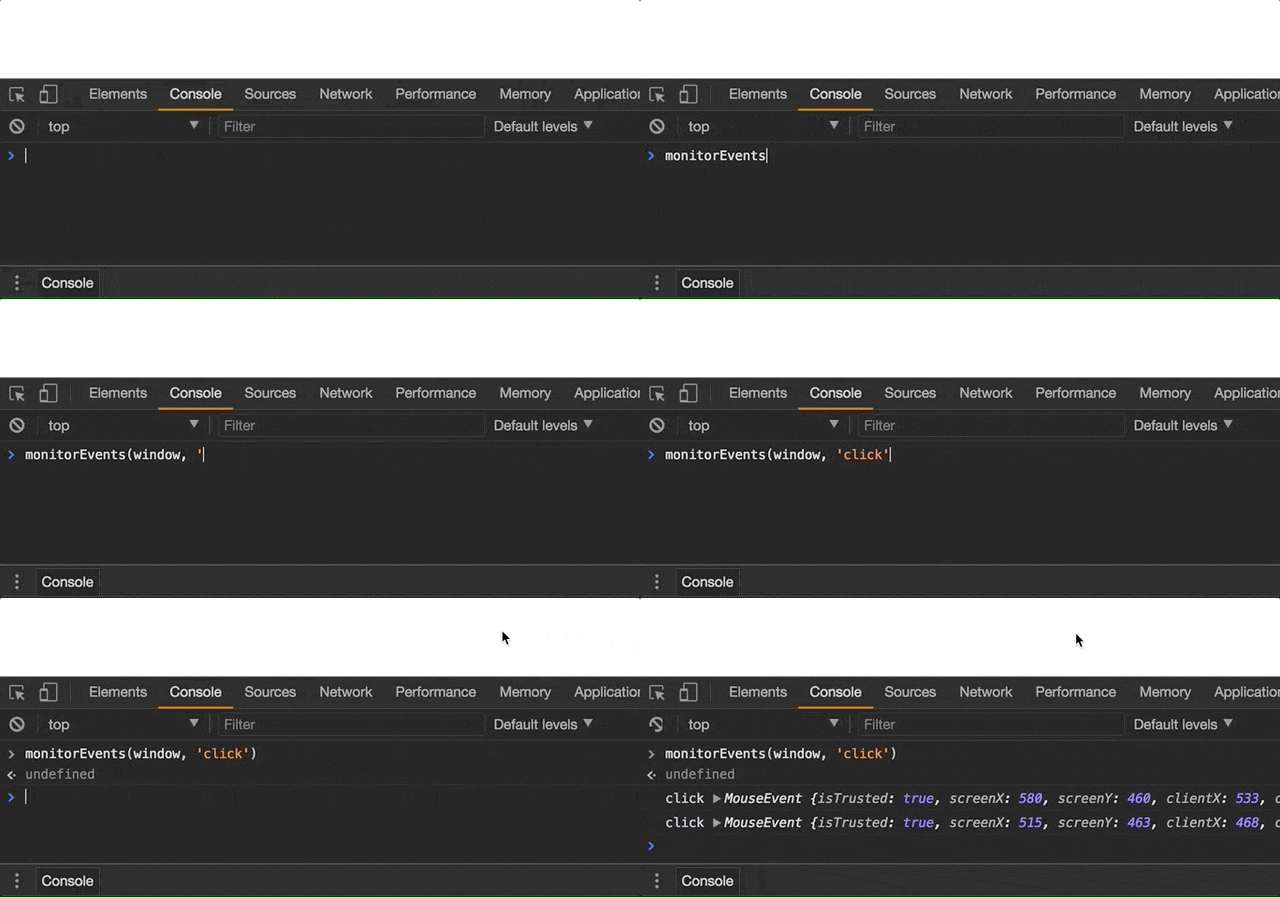
A few points:
- To stop the tracking - use
unmonitorEvents(object, [events]). - We could use
unmonitorEvents(object)to eliminate the tracking for all events.
Measuring Time
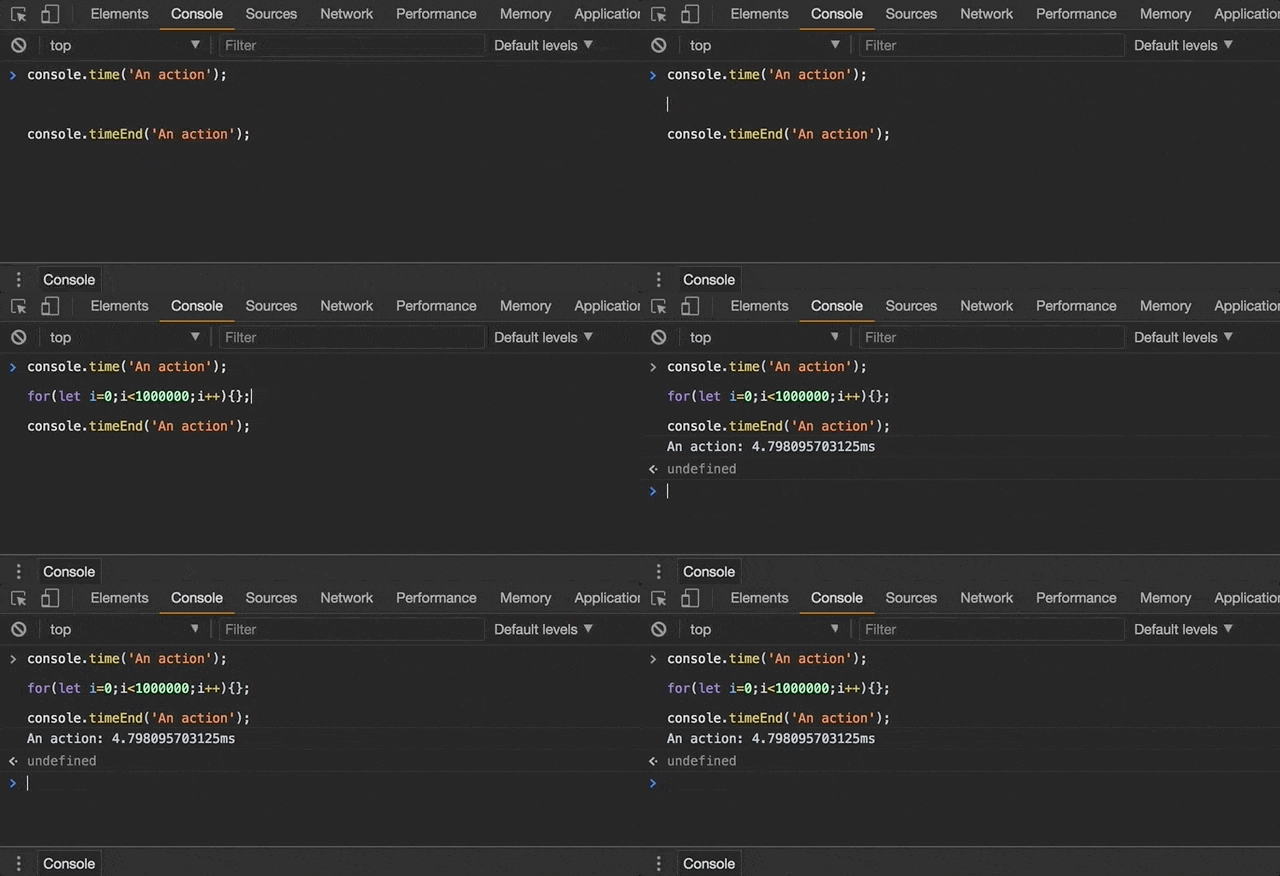
We can measure how long an action takes by calling console.time(label) before it and console.timeEnd(label) after it:
Styling Console Output
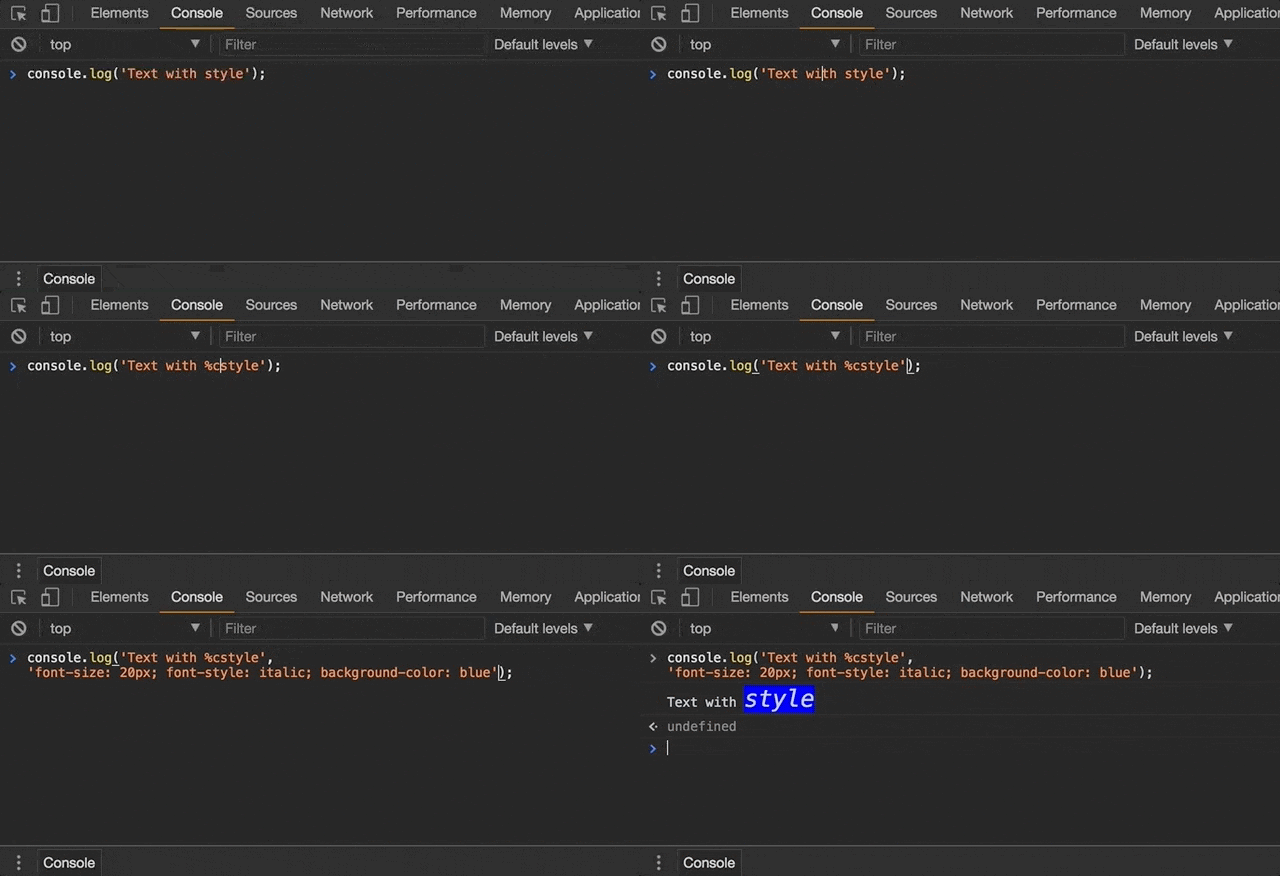
Applying CSS on the output text is performed using the %c string, which indicates the beginning of the styled text. The second parameter is a string of the specified CSS properties.
Here’s an example:
Hiding Network Messages
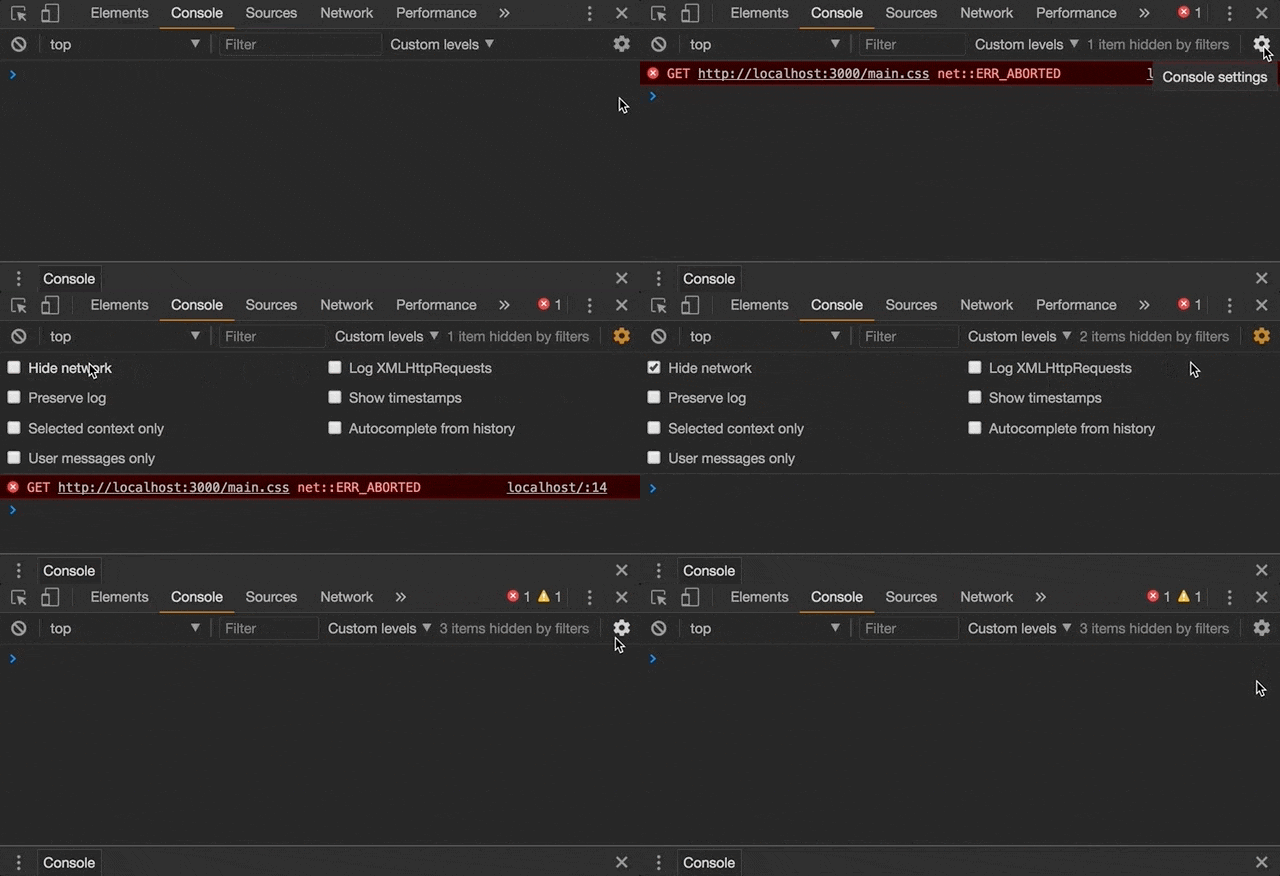
Network messages may appear in the Console in case of an error of a resource, blocking scripts and so on. From time to time, we don’t care about these messages and we wish to hide them:
Editing an Element
We can edit the content of an element directly through the Console:
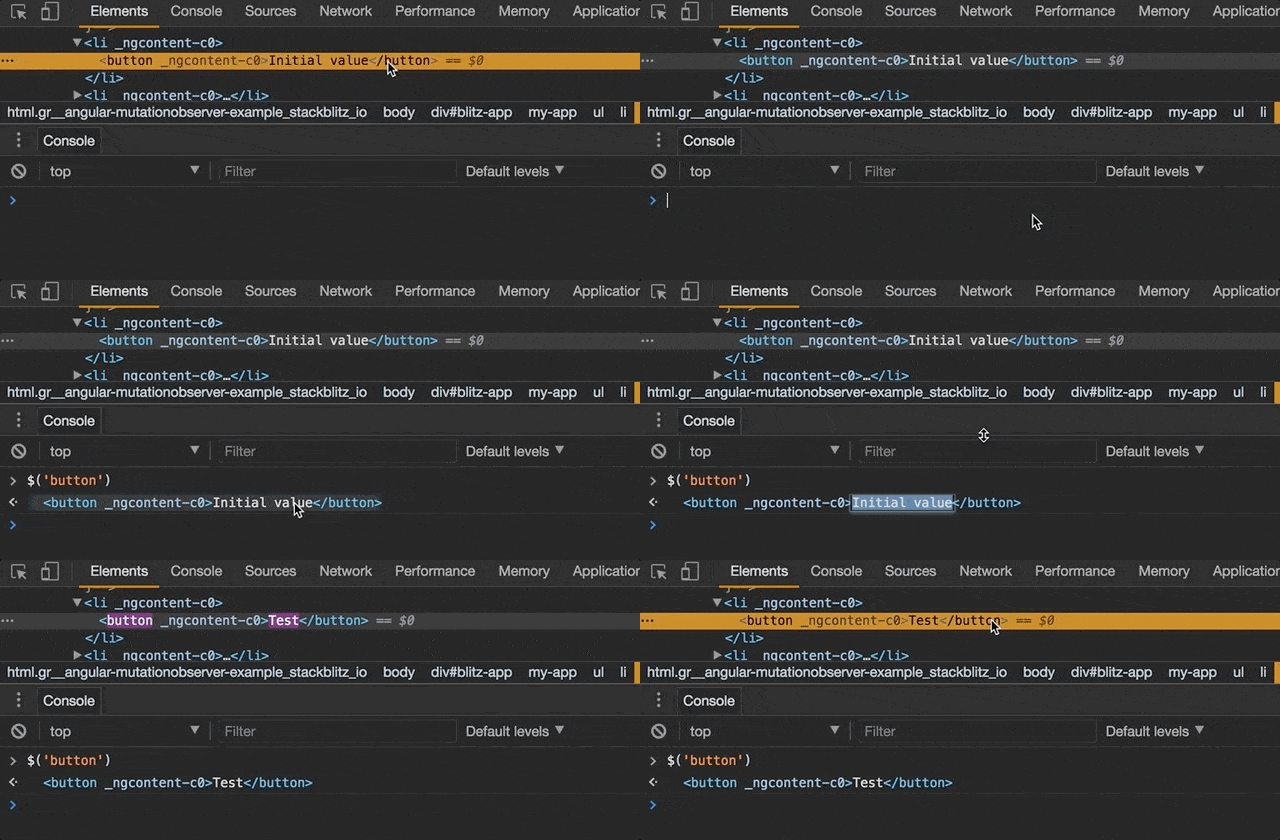
Note: The element could be edited as HTML as well.
References
Check out the following links for more information:
You’re welcome to share:
Enjoyed this post?
I’d love for you to follow me and join my newsletter.
Comments are powered by DisqusDetails
Loading comments activates Disqus, which collects information as a third-party service.
The site owner has no access to or control over the information collected by Disqus.
Related Posts

How to Sync a Design System with Claude Design
17 min read
Syncing React components into Claude Design with /design-sync: what the mirror holds, how it's verified and a step-by-step example with shadcn/ui, Tailwind v4 and Storybook.
Read post

ECMAScript - Introducing Deferred Module Evaluation with import defer
8 min read
Introducing the “import defer” proposal, a new ECMAScript import form that loads and links modules eagerly while deferring their evaluation until a namespace property is first accessed - currently at stage 3 in the TC39 process.
Read post

ECMAScript - Introducing BigInt Primitive in ES2020 (ES11)
5 min read
BigInt in ES2020 (ES11) - a new primitive for arbitrarily large integers, with its operators, comparisons and limits.
Read post