Published on 4 min read
How to Add a Third-Party Library in Angular CLI
Adding third-party libraries to an Angular CLI project - ES modules, global scripts and styles and external assets.
Using ES6 Modules
The easiest way to add third-party libraries is to use ES6 Modules. A library, which is exported declaratively, could be loaded in a few straightforward steps.
Let’s simulate this way by installing Lodash in our project:
npm install lodash-es
npm install @types/lodash-es --save-dev
Yay, Lodash is installed! - now let’s use it:
import { isEmpty } from 'lodash-es';

@Component({
 // Metadata
})
export class AppComponent {
  private isEmptyValue(value: any): boolean {
    return isEmpty(value);
  }
}
Now that isEmpty is imported - we’re able to invoke that method. But what will happen when we import this method like that way in another file? Will it be loaded twice?
Basically, ES6 Modules are singletons. So, if a module is imported multiple times, we can be sure it will be evaluated and loaded into the bundle only once.
In practice, we "cherry-picked" the isEmpty method of Lodash specifically in order to reduce the bundle size.
Note: We install lodash-es, the ES Modules build of Lodash, so the bundler is able to tree-shake the methods we don’t use.
Global Scripts & Styles
ES6 Modules are a superb way to use third-party libraries. However, not all the third-party libraries support it, such as jQuery, Bootstrap and more. Don’t panic - Angular CLI provides a declarative way to handle these libraries through the angular.json file.
To explain - let’s install Bootstrap 5, which no longer depends on jQuery, along with Popper:
npm install bootstrap @popperjs/coreLet’s install the typings of Bootstrap as well:
npm install @types/bootstrap --save-devNote: We use typings modules for getting the desired autocomplete functionality in the IDE.
As an additional step, we open tsconfig.app.json. Then, we should add Bootstrap to the types array so the TypeScript compiler will recognize those:
"types": [
  "bootstrap"
]
All right, the libraries were installed, but now we’d like to figure out how to inject them. The first step will be to open the angular.json file and find the architect.build.options of our project.
Now, we should look for the injected scripts array and add the bundled script of Bootstrap (which includes Popper):
"scripts": [
  "node_modules/bootstrap/dist/js/bootstrap.bundle.min.js"
]
Similarly, we’ll add the styles file of Bootstrap to the injected styles array:
"styles": [
  "node_modules/bootstrap/dist/css/bootstrap.css",
  "src/styles.scss"
]
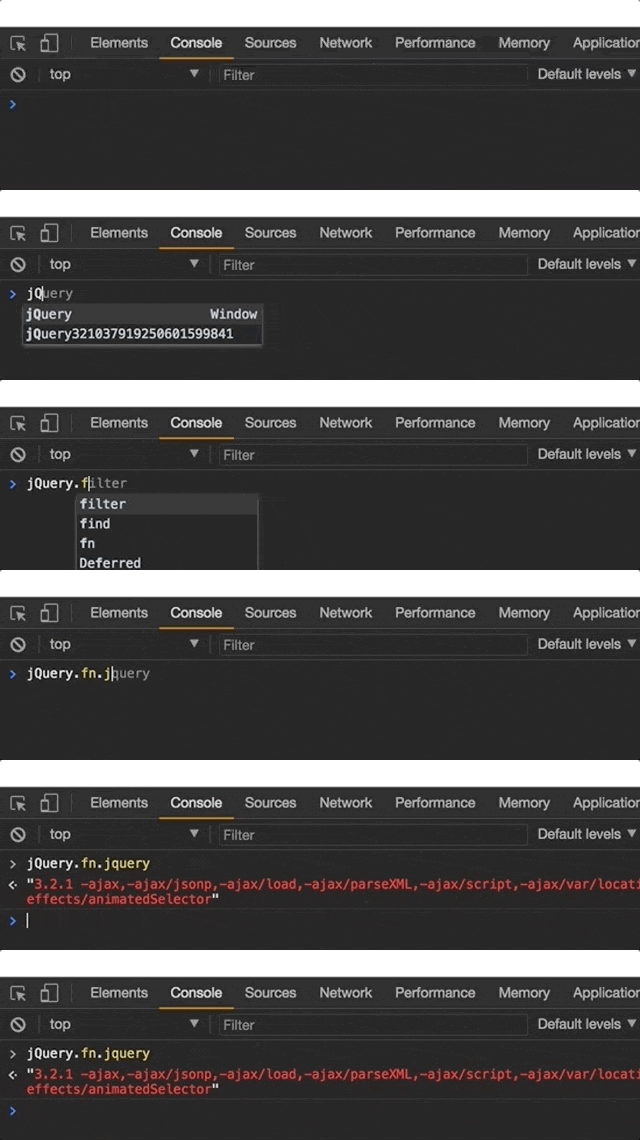
Well, what we did here, is to load the third-party’s scripts before the Angular application initializes. In fact, that’s the equivalent of injecting these files as scripts tags of index.html, which means these scripts are on the global scope or in other words - on the Window object. Just like that, the styles are injected as link tags.
Here’s the result:
External Assets
So far we examined adding third-party libraries using ES6 Modules and global sources. Our mission now is to add a third-party library that includes some additional resources.
Iconic is a perfect choice. Let’s install it:
npm install open-iconicLike before, we should navigate to angular.json file and find the injected assets. But, suppose we want to inject all the SVGs which are provided by that third-party - so far, we’d have to inject each file individually. So, how should we do that?
One option on the table is copying of the SVGs directory into our codebase manually. However, we don’t want to mingle with an external code. Against that - Angular CLI supports injecting external assets using node-glob.
Here’s the way to inject the whole directory:
"assets": [
  { "glob": "**/*", "input": "node_modules/open-iconic/svg", "output": "assets/svg" },
  "src/assets",
  "src/favicon.ico"
]
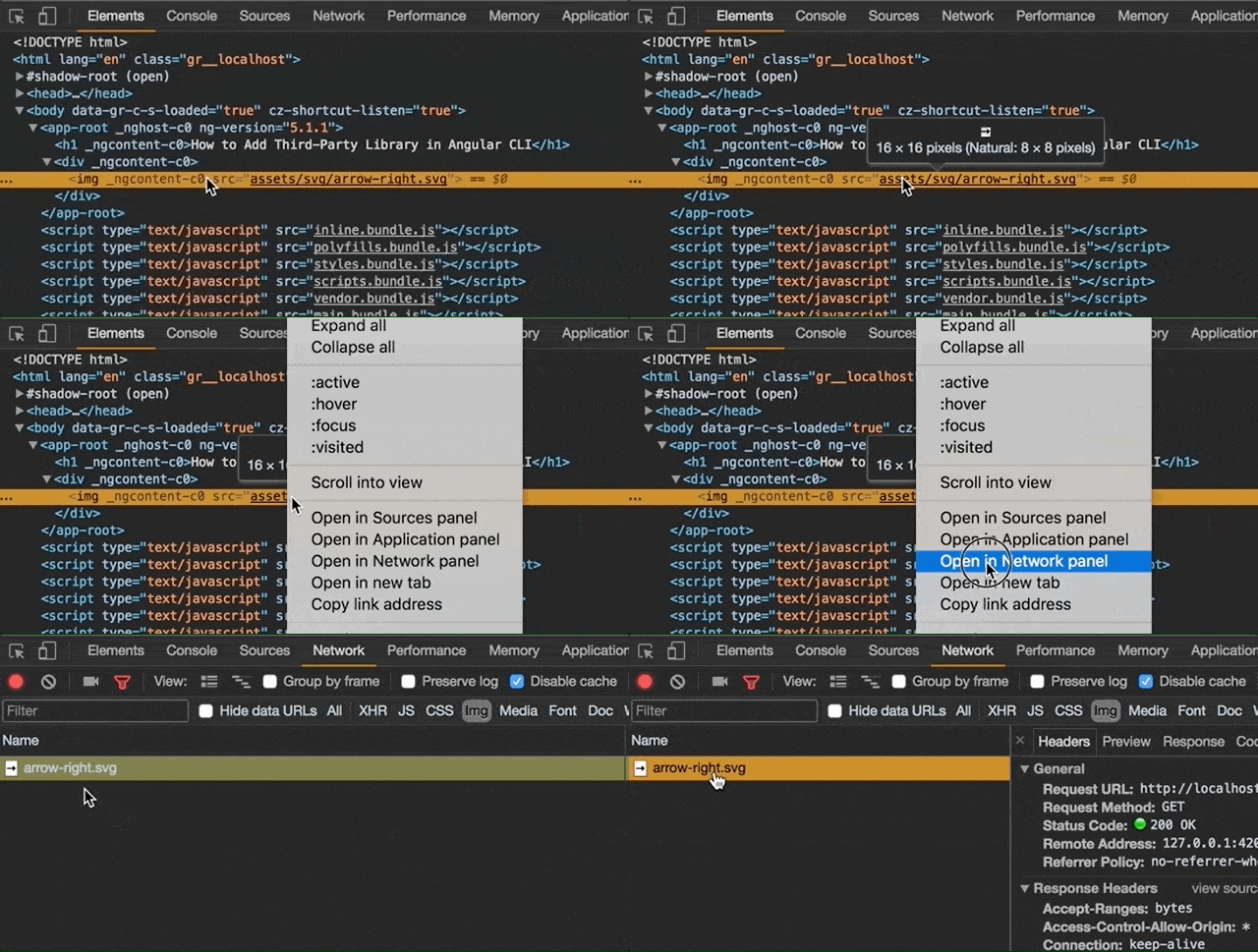
It means that all SVGs are available to be bundled and served as part of assets - we just have to access it.
Here’s an example that uses a specific SVG:
Wrapping Up
We introduced three different use-cases for adding a third-party library into our Angular CLI project: ES6 Modules, scripts & styles on the global scope and importing external assets.
Here’s the sample project.
You’re welcome to share:
Join My Newsletter
Get new posts directly to your inbox.
Comments are powered by DisqusDetails
Loading comments activates Disqus, which collects information as a third-party service.
The site owner has no access to or control over the information collected by Disqus.
Related Posts

How to Sync a Design System with Claude Design
18 min read
Syncing React components into Claude Design with /design-sync: what the mirror holds, how it's verified and a step-by-step example with shadcn/ui, Tailwind v4 and Storybook.
Read post

ECMAScript - Introducing Deferred Module Evaluation with import defer
8 min read
Introducing the “import defer” proposal, a new ECMAScript import form that loads and links modules eagerly while deferring their evaluation until a namespace property is first accessed - currently at stage 3 in the TC39 process.
Read post

ECMAScript - Introducing BigInt Primitive in ES2020 (ES11)
5 min read
BigInt in ES2020 (ES11) - a new primitive for arbitrarily large integers, with its operators, comparisons and limits.
Read post